
QuizLab — Documentation
A professional quiz component for Joomla 5 and 6.
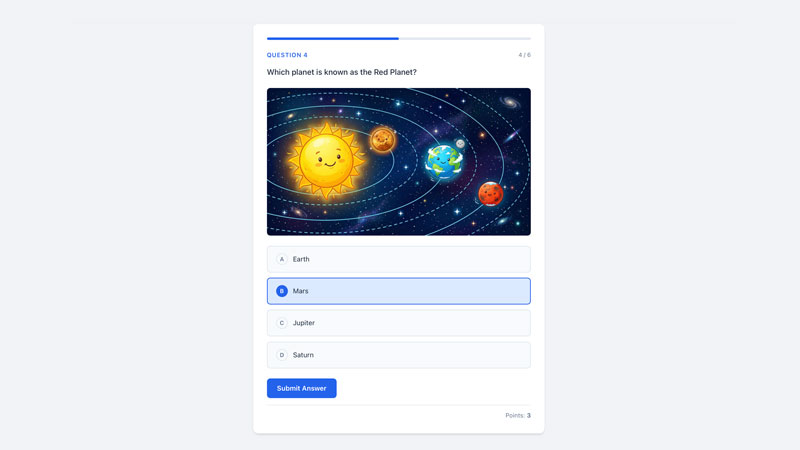
QuizLab lets you create interactive quizzes with multiple choice, true/false, and numeric question types. It features percentage-based scoring with configurable pass marks, instant feedback, PDF certificate generation, and CSV question import. The frontend quiz experience is a smooth, AJAX-driven single-page app that works on all devices.
Requirements
- Joomla 5.x or 6.x
- PHP 8.1+
- MySQL 5.7+ or MariaDB 10.3+
Installation
- Download the latest release from extensions.thedesigncompany.co.nz.
- In your Joomla administrator, go to System > Install > Extensions.
- Upload the
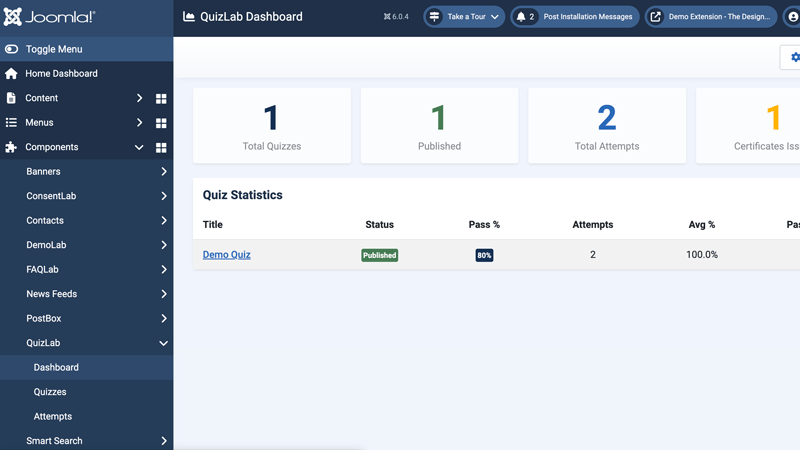
com_quizlab-*.zippackage and click Upload & Install. - QuizLab appears in the administrator sidebar under Components > QuizLab.
Getting Started
Creating Your First Quiz
- Go to Components > QuizLab > Quizzes and click New.
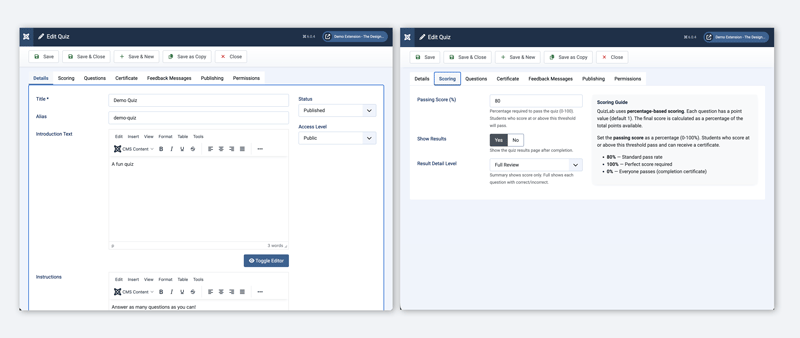
- Enter a Title for your quiz.
- Optionally add an Introduction Text and Instructions — these are shown to students before they start.
- Set the Passing Score percentage (default is 80%).
- Configure result display and certificate options under the Scoring and Certificate tabs.
- Set the status to Published and click Save.
Adding Questions
- From the quiz edit screen, click Manage Questions (or navigate to the Questions view from the quiz list).
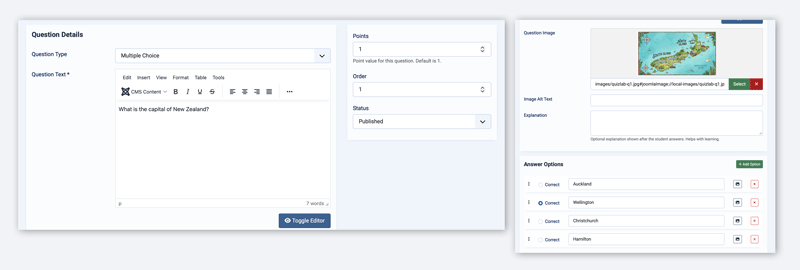
- Click New to add a question.
- Choose the Question Type:
- Multiple Choice — 2 to 8 answer options with one correct answer
- True / False — Two options auto-populated when you select this type
- Numeric — Students enter a number; you set the correct answer and optional tolerance
- Enter the Question Text using the editor. You can include images, formatting, and links.
- For MC/TF questions, fill in the answer options and select which one is correct using the radio button.
- For numeric questions, enter the Correct Answer and an optional Tolerance (e.g. tolerance of 0.5 means answers within +/-0.5 of the correct value are accepted).
- Optionally set Points (default 1) and add an Explanation that students see after answering.
- Click Save or Save & New to add more questions.
Creating a Menu Item
- Go to Menus and edit the menu where you want the quiz to appear.
- Click New to add a menu item.
- Set the Menu Item Type to QuizLab > Quiz.
- Select the quiz from the Select Quiz dropdown.
- Save the menu item.
Students can now access the quiz from your site's frontend.
Embedding a Quiz in an Article
Install the QuizLab package, enable the Content - QuizLab plugin, then add a shortcode to any Joomla article:
{quizlab 123}
Replace 123 with the quiz ID. You can also use optional width and class attributes:
{quizlab 123 width=100% class=featured-quiz}
Question Types
Multiple Choice
The most common question type. Add 2 to 8 answer options and mark one as correct. Options can include text and optional images. Students click an option to select it, then submit.
True / False
A simplified two-option question. When you select True/False as the type, the options “True” and “False” are auto-populated. Select which one is the correct answer.
Numeric
Students type a number as their answer. You set:
- Correct Answer — The expected numeric value (supports decimals)
- Tolerance — The acceptable margin of error (default 0, meaning exact match required)
For example, if the correct answer is 3.14 and the tolerance is 0.01, any answer from 3.13 to 3.15 will be accepted.
Scoring & Results
Percentage-Based Scoring
QuizLab uses percentage-based scoring. Each question has a Points value (default 1). The final score is calculated as:
Score % = (Points Earned / Total Points Possible) x 100
The student passes if their score percentage meets or exceeds the quiz's Passing Score setting.
Pass Mark
Set the passing score on the quiz edit form under the Scoring tab. The default is 80%. You can set any value from 0% to 100%.
Result Display
After completing a quiz, students see a results screen showing:
- Their score percentage
- Pass or fail status
- Points earned out of total possible
- Number of correct answers
You can configure the level of detail shown:
- Summary Only — Shows the score and pass/fail status
- Full Review — Also shows each question with whether the student answered correctly, plus any explanations
Certificates
When a student passes a quiz and certificates are enabled, they can generate a PDF certificate directly from the results screen.
How It Works
- Enable certificates on the quiz edit form under the Certificate tab.
- When a student passes, a certificate form appears on the results screen.
- The student enters their name (and optionally their email).
- They click Generate Certificate and receive a downloadable PDF.
The certificate includes the student's name, quiz title, score percentage, and date. It uses a professional blue-themed design with the QuizLab branding.
Certificate Settings
In the component options (Options button on any QuizLab admin toolbar):
- PDF Orientation — Landscape (default) or Portrait
- Save PDF to Server — Optionally save a copy of each certificate to the server
CSV Import
Import questions in bulk from a spreadsheet by exporting to CSV format.
How to Import
- From the Questions view, click Import CSV in the toolbar.
- Upload your CSV file and configure the import settings:
- Delimiter — Comma (default), semicolon, or tab
- First row is a header — Enable if your CSV has column headers
- Import Mode — Append, Update existing, or Replace all
- Preview the data in the table below the upload form.
- Click Import to process the file.
CSV Format
Each row in the CSV becomes one question. The minimum required columns are question and correct.
Required columns:
question— The question textcorrect— For MC/TF: the option number that is correct (1, 2, 3...). For numeric: the correct numeric answer.
Option columns (for MC/TF):
answer_1throughanswer_6(oroption_1throughoption_6)
Optional columns:
question_type—multiple_choice,true_false, ornumericpoints— Point value for the questionexplanation— Explanation shown after answeringnumeric_answer— Correct numeric value (alternative to using thecorrectcolumn)numeric_tolerance— Acceptable margin of error for numeric questionsquestion_image— Path to a question imagequestion_image_alt— Alt text for the question image
Import Modes
- Append — Adds new questions after any existing ones
- Update existing — Matches CSV rows to existing questions by position. Only non-empty fields are updated. Extra rows are added as new questions.
- Replace all — Deletes all existing questions and options, then imports fresh from CSV
Sample CSV
Click Download Sample CSV on the import screen to get a template file with example questions of each type.
Tips
- Use a spreadsheet app (Excel, Google Sheets) to create your questions, then export as CSV.
- For True/False questions, you can leave the answer columns empty — “True” and “False” options are auto-created.
- For numeric questions, put the correct numeric answer in the
correctcolumn if you don't have a separatenumeric_answercolumn. - Column names are flexible — the importer recognises common aliases (e.g.
answer_1oroption_1ora1all work).
Quiz Experience
Frontend Flow
The quiz runs as a single-page AJAX application with three screens:
- Intro Screen — Shows the quiz title, introduction text, instructions, question count, and pass mark. Students click Start Quiz to begin.
- Question Screen — Displays one question at a time with a progress bar, question counter, and running score. Students select an answer (or type a number for numeric questions) and click Submit Answer. Instant feedback shows whether they were correct, along with any explanation. Click Next Question to continue.
- Results Screen — Shows the final score, pass/fail status, and optionally a question-by-question review. If the student passed and certificates are enabled, a certificate generation form appears.
Session Recovery
If a student's browser tab is accidentally closed during a quiz, their progress is saved. Returning to the quiz page will resume from where they left off.
Customisable Labels
On the quiz edit form under the Feedback Messages tab, you can customise:
- Correct/incorrect feedback messages
- Button labels (Start Quiz, Submit Answer, Next Question, Try Again)
Leave any field blank to use the default text.
Admin Dashboard
The QuizLab dashboard (Components > QuizLab > Dashboard) shows:
- Total Quizzes — All quizzes (including unpublished)
- Published Quizzes — Currently active quizzes
- Total Attempts — Completed quiz attempts
- Certificates Issued — Total certificates generated
- Quiz Statistics — Per-quiz breakdown showing average score, attempt count, and pass count
Managing Attempts
The Attempts view (Components > QuizLab > Attempts) lists all completed quiz attempts with:
- Quiz name
- Student name and email (if a certificate was generated)
- Score percentage
- Pass/fail status
- Completion date
Filtering
Filter attempts by quiz, pass/fail status, date range, or search by student name/email.
Cleanup
- Delete — Remove selected attempts and their associated answers and certificates
- Clear All — Remove all completed attempts at once
Component Options
Access via the Options button on any QuizLab admin toolbar.
Basic Settings
- Default Pass Percentage — Default passing score for new quizzes (default 80%)
- Enable Attempt Logging — Whether to record quiz attempts
- Keep Attempt Records (Days) — How long to retain attempt data (default 365 days)
Certificate Settings
- PDF Orientation — Landscape or Portrait
- Save PDF to Server — Store a server-side copy of generated certificates
Image Settings
- Max Image Width/Height — Maximum dimensions for question images
- Allowed Image Types — Permitted image file extensions (default: jpg, jpeg, png, webp)
Support
For questions, bug reports, or feature requests, visit extensions.thedesigncompany.co.nz and submit a support request from the QuizLab extension page.
Licence
QuizLab is released under the GNU General Public License v2 or later. See GNU GPL v2.